

Description
Download Capture A ScreenShot – Free, Simple, Secure Screenshot Tool for Windows
Capture A ScreenShot is a lightweight, no-frills screenshot utility designed exclusively for Windows users. Since its debut in 2011, it has gained a loyal following with over 114,000 downloads, especially popular in Turkey, Italy, and Indonesia. Despite its age, the software remains a favorite among users who appreciate minimalism and speed. With a mere 3.2MB file size, it doesn’t take up much space and runs smoothly on older systems, including Windows 98 and earlier. The tool is completely free to download and use, making it an accessible choice for casual users and students alike. While it lacks modern features like cloud integration or advanced editing, its simplicity is its greatest strength. Capture A ScreenShot allows you to take full-screen, window, or region-based screenshots with just a few clicks. The interface is clean and intuitive, requiring no learning curve. However, it’s important to note that the software hasn’t been updated since 2011, and it may not function optimally on newer Windows versions like Windows 10 or 11. For users still running legacy systems or looking for a no-nonsense tool, Capture A ScreenShot remains a viable option. If you’re searching for a secure, fast, and lightweight screenshot app, this could be the right fit—especially if you value simplicity over advanced functionality.
Key Features of Capture A ScreenShot
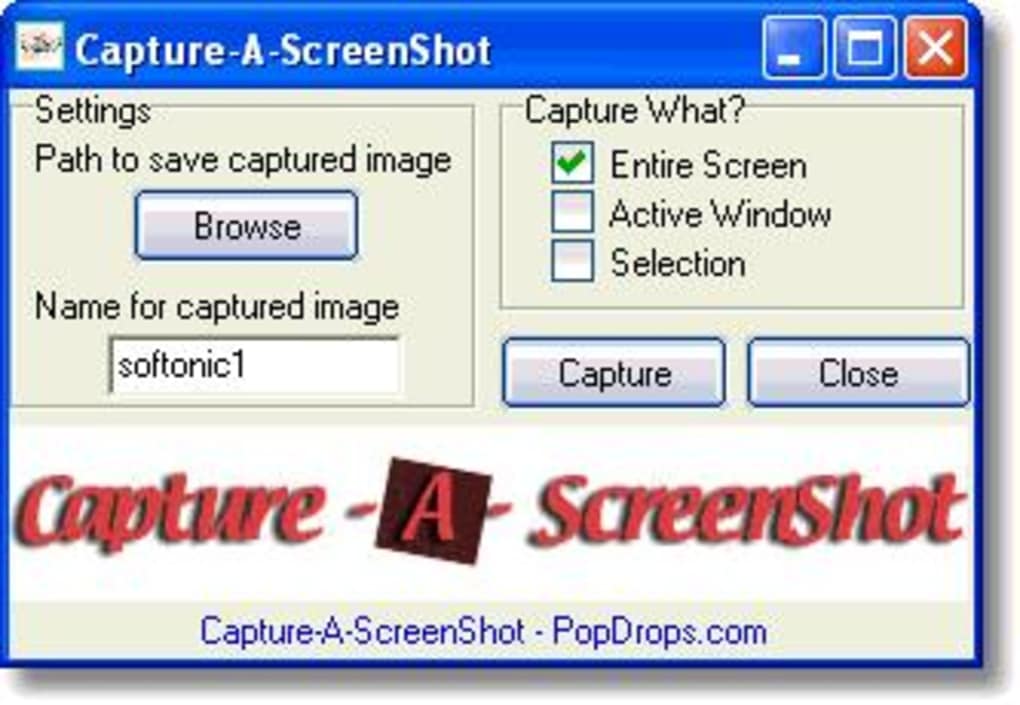
Despite its age, Capture A ScreenShot delivers on its core promise: capturing screenshots quickly and efficiently. The software is designed with minimalism in mind, offering only essential features without clutter. One of its standout characteristics is its ability to capture full-screen, active window, or custom region screenshots with ease. Simply launch the app, select your desired capture type, and press the designated key or click the button. The process is nearly instantaneous, ideal for users who need to capture content quickly without distractions.
Another notable feature is its lightweight nature. At just 3.2MB, the program installs and runs with minimal system impact, making it perfect for older or low-spec machines. It doesn’t require complex setup or administrator privileges, which enhances its accessibility. The interface is clean and straightforward, with no unnecessary menus or pop-ups—just a simple window with clear options. Additionally, the tool supports saving screenshots directly to your computer’s default Pictures folder, or you can choose a custom location. While it doesn’t include built-in editing tools, the basic functionality is reliable and consistent.
For users who prefer keyboard shortcuts, Capture A ScreenShot offers customizable hotkeys, allowing you to trigger captures with a single key combination. This feature is particularly useful for productivity workflows, such as documentation, tutorials, or content creation. Although it lacks modern integrations like cloud storage or social sharing, its core purpose is fulfilled without compromise. Overall, the feature set is modest but effective, making it a solid choice for users who prioritize speed and simplicity over advanced editing or sharing options.
- Full-screen, window, and region capture modes
- Lightweight design (only 3.2MB)
- Customizable keyboard shortcuts
- Simple, distraction-free interface
- Free to download and use
- Compatible with Windows 98 and earlier
Compatibility & Installation Guide
Capture A ScreenShot is exclusively designed for Windows operating systems, with support for Windows 98 and earlier versions. This makes it ideal for users still running legacy systems or those who need a tool that functions on older hardware. However, it’s important to note that the software is not compatible with modern Windows versions such as Windows 10, 11, or even Windows 7 and 8, which may result in installation failures or runtime errors. If you’re using a recent version of Windows, you may encounter compatibility issues due to outdated system requirements and lack of modern API support.
To install Capture A ScreenShot, begin by downloading the installer from a trusted source. Ensure you’re downloading from a reputable website to avoid malware or bundled software. Once downloaded, run the executable file and follow the on-screen instructions. The setup process is quick and straightforward—no complex configurations are needed. After installation, launch the program from the Start menu or desktop shortcut. The app will start in the background, and you can access it via the system tray or by using your assigned hotkey.
For optimal performance, it’s recommended to run the software in compatibility mode if you're using a newer Windows version. Right-click the executable, go to Properties > Compatibility, and select an older Windows version (e.g., Windows XP). This can help bypass some compatibility issues. However, success is not guaranteed. If you're on Windows 10 or 11, consider using built-in alternatives like the Snipping Tool or Snip & Sketch, or explore modern third-party tools like LightShot or FastStone Capture, which offer similar functionality with better compatibility and updates.
Pros & Cons of Capture A ScreenShot
When evaluating Capture A ScreenShot, it’s essential to consider both its strengths and limitations. On the positive side, the software excels in simplicity and speed. It’s perfect for users who need to take screenshots without any extra steps or distractions. The minimal interface ensures that you’re not overwhelmed with options, and the lightweight footprint means it won’t slow down older machines.
Another major advantage is that it’s completely free. There are no hidden costs, subscription fees, or in-app purchases. This makes it an excellent choice for students, educators, or anyone on a tight budget. The small file size also means it can be easily stored or transferred via USB drives or email.
However, there are several drawbacks. The most significant is the lack of updates—last updated in 2011. This raises concerns about security, compatibility, and performance on modern systems. Additionally, the software doesn’t support newer Windows versions, limiting its usability for most current users. It also lacks advanced features like image editing, annotation tools, cloud sharing, or automatic file naming. These omissions may be acceptable for basic use but are a dealbreaker for power users or professionals.
- Pros:
- Extremely lightweight (3.2MB)
- Free to download and use
- Simple, intuitive interface
- Fast screenshot capture
- Customizable hotkeys
- Cons:
- Not compatible with Windows 10/11
- No updates since 2011
- Lacks editing and sharing tools
- Only supports older Windows versions
- Outdated design and user experience
Frequently Asked Questions (FAQ)
Is Capture A ScreenShot safe to download?
Yes, the software is safe to download when obtained from reputable sources. However, always verify the file signature and scan it with antivirus software before installation to ensure it’s free from malware.
Can I use Capture A ScreenShot on Windows 10 or 11?
While it may technically install on Windows 10 or 11, it’s not officially supported and may not function correctly. For best results, use it on Windows 98 or earlier systems.
Does Capture A ScreenShot offer editing tools?
No, the software does not include built-in image editing features. You’ll need to use a separate tool like Paint or Photoshop to annotate or modify screenshots.
Is there a portable version available?
There is no official portable version of Capture A ScreenShot. The software requires installation and does not run directly from a USB drive.
Are there better alternatives for modern users?
Yes, modern alternatives like LightShot, FastStone Capture, and the built-in Snip & Sketch tool in Windows 10/11 offer more features, better compatibility, and regular updates.
Final Verdict & Call to Action
While Capture A ScreenShot remains a nostalgic favorite for users of older Windows systems, it’s not the best choice for modern users. Its simplicity and lightweight design are still commendable, but the lack of updates and compatibility with current operating systems significantly limits its usefulness. If you’re running Windows 98 or an older machine and need a no-fuss screenshot tool, it’s worth a try. However, for most users today, we recommend exploring updated alternatives that offer better performance, security, and features.
For those who still want to experience the original tool, you can download Capture A ScreenShot for free from trusted software archives. Just remember to use it responsibly and only on compatible systems. If you’re looking for a more modern, secure, and feature-rich experience, consider upgrading to a current screenshot app that supports your device and operating system.
Download Capture A ScreenShot today and see if this classic tool still holds up—just be sure to check your system compatibility first!
Guides & Tutorials for Capture A ScreenShot
How to install Capture A ScreenShot
- Click the Preview / Download button above.
- Once redirected, accept the terms and click Install.
- Wait for the Capture A ScreenShot download to finish on your device.
How to use Capture A ScreenShot
This software is primarily used for its core features described above. Open the app after installation to explore its capabilities.
User Reviews for Capture A ScreenShot 0
No reviews found





